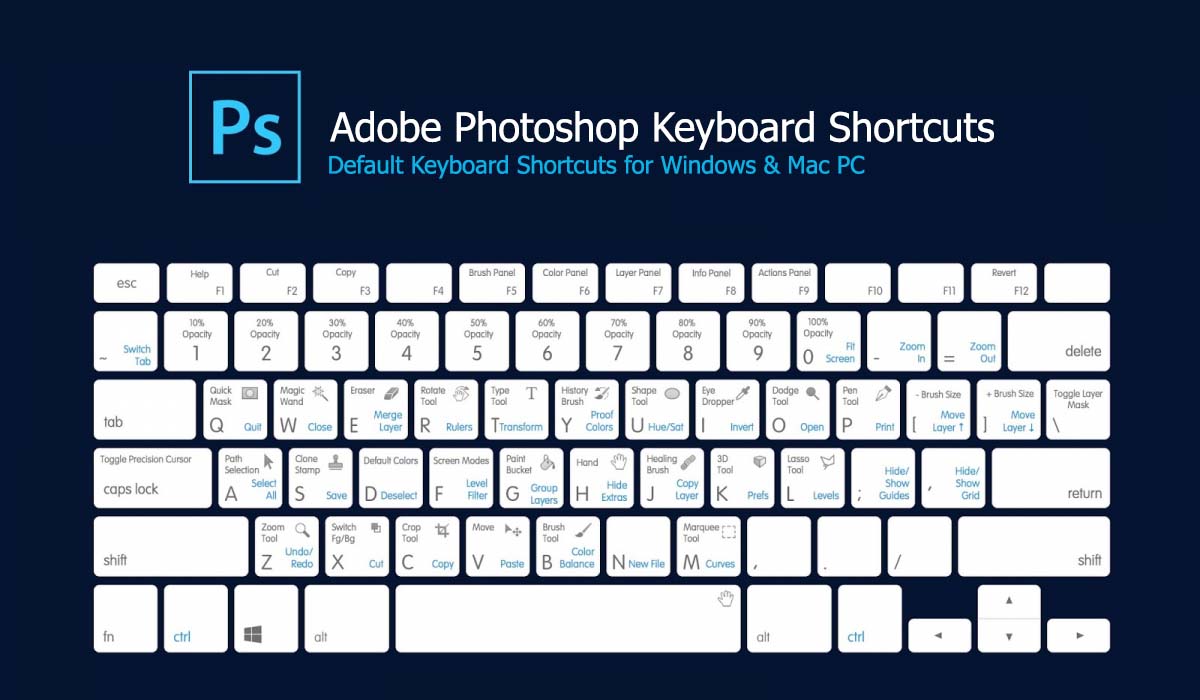
Use keyboard shortcuts to become more productive while using Adobe Photoshop.
Notes:
You can view, edit, and summarize keyboard shortcuts in the Keyboard Shortcuts dialog box. To view this in Photoshop, select Edit > Keyboard Shortcuts or use the following keyboard shortcuts:
Alt + Shift + Control + K (Windows)
Alt + Shift + Command + K (macOS)
Popular Shortcuts:
| Result | Windows | macOS |
|---|---|---|
| Free Transform | Control + T | Command + T |
| Decrease Brush Size | [ | [ |
| Increase Brush Size | ] | ] |
| Decrease Brush Hardness | { | { |
| Increase Brush Hardness | } | } |
| Default Foreground/Background colors | D | D |
| Switch Foreground/Background colors | X | X |
| New layer via copy | Control + J | Command + J |
| New layer via cut | Shift + Control + J | Shift + Command + J |
| Add to a selection | Any selection tool + Shift-drag | Any selection tool + Shift-drag |
| Delete brush or swatch | Alt-click brush or swatch | Option-click brush or swatch |
| Toggle auto-select with move tool | Control-click | Command-click |
| Cancel any modal dialog window (including the Start Workspace) | Escape | Escape |
| Select the first edit field of the tool bar | Enter | Return |
| Navigate between fields | Tab | Tab |
| Navigate between fields in opposite direction | Tab + Shift | Tab + Shift |
| Change Cancel to Reset | Alt | Option |
Invoke the search experience
| Result | Windows | macOS |
| Search across Photoshop UI, Help & Learn content, and Adobe Stock assets. For more information, see Photoshop search. | Control + F | Command + F |
Use function keys
Note:
For macOS, press and hold the Fn key along with the function key (F1-F12) to override default macOS functions such as screen brightness, volume, etc. For more information on the behaviour of function keys on your Mac, refer to these Apple documentations:
| Result | Windows | macOS |
|---|---|---|
| Start Help | F1 | Help key |
| Undo/Redo | F1 | |
| Cut | F2 | F2 |
| Copy | F3 | F3 |
| Paste | F4 | F4 |
| Show/Hide Brush panel | F5 | F5 |
| Show/Hide Color panel | F6 | F6 |
| Show/Hide Layers panel | F7 | F7 |
| Show/Hide Info panel | F8 | F8 |
| Show/Hide Actions panel | F9 | Option + F9 |
| Revert | F12 | F12 |
| Fill | Shift + F5 | Shift + F5 |
| Feather Selection | Shift + F6 | Shift + F6 |
| Inverse Selection | Shift + F7 | Shift + F7 |
Select tools
Holding down a key temporarily activates a tool. Letting go of the key returns to the previous tool.
Note:
In rows with multiple tools, repeatedly press the same shortcut to toggle through the group.
| Result | Windows | macOS |
|---|---|---|
| Cycle through tools with the same shortcut key | Shift-press shortcut key (if Use Shift Key for Tool Switch preference is selected) | Shift-press shortcut key (if Use Shift Key for Tool Switch preference is selected) |
| Cycle through hidden tools | Alt-click + tool (except Add Anchor Point, Delete Anchor Point, and Convert Point tools) | Option-click + tool (except Add Anchor Point, Delete Anchor Point, and Convert Point tools) |
| Move tool | V | V |
| Rectangular Marquee tool† Elliptical Marquee tool | M | M |
| Lasso tool Polygonal Lasso tool Magnetic Lasso tool | L | L |
| Magic Wand tool Quick Selection tool | W | W |
| Crop tool Slice tool Slice Select tool | C | C |
| Eyedropper tool† Color Sampler tool Ruler tool Note tool | I | I |
| Spot Healing Brush tool Healing Brush tool Patch tool Red Eye tool | J | J |
| Brush tool Pencil tool Color Replacement tool Mixer Brush tool | B | B |
| Clone Stamp tool Pattern Stamp tool | S | S |
| History Brush tool Art History Brush tool | Y | Y |
| Eraser tool† Background Eraser tool Magic Eraser tool | E | E |
| Gradient tool Paint Bucket tool | G | G |
| Dodge tool Burn tool Sponge tool | O | O |
| Pen tool Freeform Pen tool | P | P |
| Horizontal Type tool Vertical Type tool Horizontal Type mask tool Vertical Type mask tool | T | T |
| Path Selection tool Direct Selection tool | A | A |
| Rectangle tool Rounded Rectangle tool Ellipse tool Polygon tool Line tool Custom Shape tool | U | U |
| Hand tool† | H | H |
| Rotate View tool | R | R |
| Zoom tool† | Z | Z |
| Default Foreground/Background colors | D | D |
| Switch Foreground/Background colors | X | X |
| Toggle Standard/Quick Mask modes | Q | Q |
| Content-Aware Move tool | J | J |
| Perspective Crop tool | C | C |
| Artboard tool | V | V |
| Rotate View tool | R | R |
| Toggle Preserve Transparency | / (forward slash) | / (forward slash) |
| Decrease Brush Hardness | { | { |
| Increase Brush Hardness | } | } |
| Previous Brush | , | , |
| Next Brush | . | . |
| First Brush | < | < |
| Last Brush | > | > |
| †Use same shortcut key for Liquefy | ||
View images
This partial list provides shortcuts that don’t appear in menu commands or tool tips.
| Result | Windows | macOS |
|---|---|---|
| Cycle through open documents | Control + Tab | Control + Tab |
| Switch to previous document | Shift + Control + Tab | Shift + Command + `(grave accent) |
| Close a file in Photoshop and open Bridge | Shift-Control-W | Shift-Command-W |
| Toggle between Standard mode and Quick Mask mode | Q | Q |
| Toggle (forward) between Standard screen mode, Full screen mode with menu bar, and Full screen mode | F | F |
| Toggle (backward) between Standard screen mode, Full screen mode with menu bar, and Full screen mode | Shift + F | Shift + F |
| Toggle (forward) canvas color | Spacebar + F (or right-click canvas background and select color) | Spacebar + F (or Control-click canvas background and select color) |
| Toggle (backward) canvas color | Spacebar + Shift + F | Spacebar + Shift + F |
| Fit image in window | Double-click Hand tool | Double-click Hand tool |
| Magnify 100% | Double-click Zoom tool or Ctrl + 1 | Double-click Zoom tool or Command + 1 |
| Switch to Hand tool (when not in text-edit mode) | Spacebar | Spacebar |
| Simultaneously pan multiple documents with Hand tool | Shift-drag | Shift-drag |
| Switch to Zoom In tool | Control + spacebar | Command + spacebar |
| Switch to Zoom Out tool | Alt + spacebar | Option + spacebar |
| Move Zoom marquee while dragging with the Zoom tool | Spacebar-drag | Spacebar-drag |
| Apply zoom percentage, and keep zoom percentage box active | Shift + Enter in Navigator panel zoom percentage box | Shift + Return in Navigator panel zoom percentage box |
| Zoom in on specified area of an image | Control-drag over preview in Navigator panel | Command-drag over preview in Navigator panel |
| Temporarily zoom into an image | Hold down H and then click in the image and hold down the mouse button | Hold down H and then click in the image and hold down the mouse button |
| Scroll image with Hand tool | Spacebar-drag, or drag view area box in Navigator panel | Spacebar-drag, or drag view area box in Navigator panel |
| Scroll up or down 1 screen | Page Up or Page Down† | Page Up or Page Down† |
| Scroll up or down 10 units | Shift + Page Up or Page Down† | Shift + Page Up or Page Down† |
| Move view to upper-left corner or lower-right corner | Home or End | Home or End |
| Toggle layer mask on/off as rubylith (layer mask must be selected) | \ (backslash) | \ (backslash) |
| †Hold down Ctrl (Windows) or Command (macOS) to scroll left (Page Up) or right (Page Down) | ||
Use Puppet Warp
This partial list provides shortcuts that don’t appear in menu commands or tool tips.
| Result | Windows | macOS |
|---|---|---|
| Cancel completely | Esc | Esc |
| Undo last pin adjustment | Ctrl + Z | Command + Z |
| Select all pins | Ctrl + A | Command + A |
| Deselect all pins | Ctrl + D | Command + D |
| Select multiple pins | Shift-click | Shift-click |
| Move multiple selected pins | Shift-drag | Shift-drag |
| Temporarily hide pins | H | H |
Use Refine Edge
| Result | Windows | macOS |
|---|---|---|
| Open the Refine Edge dialog box | Control + Alt + R | Command + Option + R |
| Cycle (forward) through preview modes | F | F |
| Cycle (backward) through preview modes | Shift + F | Shift + F |
| Toggle between original image and selection preview | X | X |
| Toggle between original selection and refined version | P | P |
| Toggle radius preview on and off | J | J |
| Toggle between Refine Radius and Erase Refinements tools | Shift + E | Shift + E |
Use the Filter Gallery
| Result | Windows | macOS |
|---|---|---|
| Apply a new filter on top of selected | Alt-click a filter | Option-click a filter |
| Reapply last-used filter | Control + Alt + F | Control + Command + F |
| Open/close all disclosure triangles | Alt-click a disclosure triangle | Option-click a disclosure triangle |
| Change Cancel button to Default | Control | Command |
| Change Cancel button to Reset | Alt | Option |
| Undo/Redo | Control + Z | Command + Z |
| Step forward | Control + Shift + Z | Command + Shift + Z |
| Step backward | Control + Alt + Z | Command + Option + Z |
Use the Liquify filter
| Result | Windows | macOS |
|---|---|---|
| Forward Warp tool | W | W |
| Reconstruct tool | R | R |
| Twirl Clockwise tool | C | C |
| Pucker tool | S | S |
| Bloat tool | B | B |
| Push Left tool | O | O |
| Mirror tool | M | M |
| Turbulence tool | T | T |
| Freeze Mask tool | F | F |
| Thaw Mask tool | D | D |
| Reverse direction for Bloat, Pucker, Push Left, and Mirror tools | Alt + tool | Option + tool |
| Continually sample the distortion
| Alt-drag in preview with Reconstruct tool, Displace, Amplitwist, or Affine mode selected | Option-drag in preview with Reconstruct tool, Displace, Amplitwist, or Affine mode selected |
| Decrease/increase brush size by 2, or density, pressure, rate, or turbulent jitter by 1 | Down Arrow/Up Arrow in Brush Size, Density, Pressure, Rate, or Turbulent Jitter text box† | Down Arrow/Up Arrow in Brush Size, Density, Pressure, Rate, or Turbulent Jitter text box† |
| Decrease/increase brush size by 2, or density, pressure, rate, or turbulent jitter by 1 | Left Arrow/Right Arrow with Brush Size, Density, Pressure, Rate, or Turbulent Jitter slider showing† | Left Arrow/Right Arrow with Brush Size, Density, Pressure, Rate, or Turbulent Jitter slider showing† |
| Cycle through controls on right from top | Tab | Tab |
| Cycle through controls on right from bottom | Shift + Tab | Shift + Tab |
| Change Cancel to Reset | Alt | Option |
| †Hold down Shift to decrease/increase by 10 | ||
Use Vanishing Point
| Result | Windows | macOS |
|---|---|---|
| Zoom 2x (temporary) | X | X |
| Zoom in | Control + + (plus) | Command + + (plus) |
| Zoom out | Control + – (hyphen) | Command + – (hyphen) |
| Fit in view | Control + 0 (zero), Double-click Hand tool | Command + 0 (zero), Double-click Hand tool |
| Zoom to center at 100% | Double-click Zoom tool | Double-click Zoom tool |
| Increase brush size (Brush, Stamp tools) | ] | ] |
| Decrease brush size (Brush, Stamp tools) | [ | [ |
| Increase brush hardness (Brush, Stamp tools) | Shift + ] | Shift + ] |
| Decrease brush hardness (Brush, Stamp tools) | Shift + [ | Shift + [ |
| Undo last action | Control + Z | Command + Z |
| Redo last action | Control + Shift + Z | Command + Shift + Z |
| Deselect all | Control + D | Command + D |
| Hide selection and planes | Control + H | Command + H |
| Move selection 1 pixel | Arrow keys | Arrow keys |
| Move selection 10 pixels | Shift + arrow keys | Shift + arrow keys |
| Copy | Control + C | Command + C |
| Paste | Control + V | Command + V |
| Repeat last duplicate and move | Control + Shift + T | Command + Shift + T |
| Create a floating selection from the current selection | Control + Alt + T | |
| Fill a selection with image under the pointer | Control-drag | Command-drag |
| Create a duplicate of the selection as a floating selection | Control + Alt-drag | Command + Option-drag |
| Constrain selection to a 15° rotation | Alt + Shift to rotate | Option + Shift to rotate |
| Select a plane under another selected plane | Control-click the plane | Command-click the plane |
| Create 90 degree plane off parent plane | Control-drag | Command-drag |
| Delete last node while creating plane | Backspace | Delete |
| Make a full canvas plane, square to the camera | Double-click the Create Plane tool | Double-click the Create Plane tool |
Use the Camera Raw dialog box
Note:
Holding down a key temporarily activates a tool. Letting go of the key returns to the previous tool.
| Result | Windows | macOS |
|---|---|---|
| Zoom tool | Z | Z |
| Hand tool | H | H |
| White Balance tool | I | I |
| Color Sampler tool | S | S |
| Crop tool | C | C |
| Straighten tool | A | A |
| Spot Removal tool | B | B |
| Red Eye Removal tool | E | E |
| Basic panel | Ctrl + Alt + 1 | Command + Option + 1 |
| Tone Curve panel | Ctrl + Alt + 2 | Command + Option + 2 |
| Detail panel | Ctrl + Alt + 3 | Command + Option + 3 |
| HSL/Grayscale panel | Ctrl + Alt + 4 | Command + Option + 4 |
| Split Toning panel | Ctrl + Alt + 5 | Command + Option + 5 |
| Lens Corrections panel | Ctrl + Alt + 6 | Command + Option + 6 |
| Camera Calibration panel | Ctrl + Alt + 7 | Command + Option + 7 |
| Presets panel | Ctrl + Alt + 9 | Command + Option + 9 (macOS Universal Access zoom shortcut must be disabled in System Preferences) |
| Open Snapshots panel | Ctrl + Alt + 9 | Command + Option + 9 |
| Parametric Curve Targeted Adjustment tool | Ctrl + Alt + Shift + T | Command + Option + Shift + T |
| Hue Targeted Adjustment tool | Ctrl + Alt + Shift + H | Command + Option + Shift + H |
| Saturation Targeted Adjustment tool | Ctrl + Alt + Shift + S | Command + Option + Shift + S |
| Luminance Targeted Adjustment tool | Ctrl + Alt + Shift + L | Command + Option + Shift + L |
| Grayscale Mix Targeted Adjustment tool | Ctrl + Alt + Shift + G | Command + Option + Shift + G |
| Last-used Targeted Adjustment tool | T | T |
| Adjustment Brush tool | K | K |
| Graduated Filter tool | G | G |
| Increase/decrease brush size | ] / [ | ] / [ |
| Increase/decrease brush feather | Shift + ] / Shift + [ | Shift + ] / Shift + [ |
| Increase/decrease Adjustment Brush tool flow in increments of 10 | = (equal sign) / – (hyphen) | = (equal sign) / – (hyphen) |
| Temporarily switch from Add to Erase mode for theAdjustment Brush tool, or from Erase to Add mode | Alt | Option |
| Increase/decrease temporary Adjustment Brush tool size | Alt + ] / Alt + [ | Option + ] / Option + [ |
| Increase/decrease temporary Adjustment Brush tool feather | Alt + Shift + ] / Alt + Shift + [ | Option + Shift + ] / Option + Shift + [ |
| Increase/decrease temporary Adjustment Brush tool flow in increments of 10 | Alt + = (equal sign) / Alt + – (hyphen) | Option = (equal sign) / Option + – (hyphen) |
| Switch to New mode from Add or Erase mode of theAdjustment Brush tool or the Graduated Filter | N | N |
| Toggle Auto Mask for Adjustment Brush tool | M | M |
| Toggle Show Mask for Adjustment Brush tool | Y | Y |
| Toggle pins for Adjustment Brush tool | V | V |
| Toggle overlay for Graduated Filter, Spot Removal tool, or Red Eye Removal tool. | V | V |
| Rotate image left | L or Ctrl + ] | L or Command + ] |
| Rotate image right | R or Ctrl + [ | R or Command + [ |
| Zoom in | Ctrl + + (plus) | Command + + (plus) |
| Zoom out | Ctrl + – (hyphen) | Command + – (hyphen) |
| Temporarily switch to Zoom In tool (Doesn’t work when Straighten tool is selected. If Crop tool is active, temporarily switches to Straighten tool.) | Ctrl | Command |
| Temporarily switch to Zoom Out tool and change the Open Image button to Open Copy and the Cancel button to Reset. | Alt | Option |
| Toggle preview | P | P |
| Full screen mode | F | F |
| Temporarily activate the White Balance tool and change the Open Image button to Open Object. (Does not work if Crop tool is active) | Shift | Shift |
| Select multiple points in Curves panel | Click the first point; Shift-click additional points | Click the first point; Shift-click additional points |
| Add point to curve in Curves panel | Control-click in preview | Command-click in preview |
| Move selected point in Curves panel (1 unit) | Arrow keys | Arrow keys |
| Move selected point in Curves panel (10 units) | Shift-arrow | Shift-arrow |
| Open selected images in Camera Raw dialog box from Bridge | Ctrl + R | Command + R |
| Open selected images from Bridge bypassing Camera Raw dialog box | Shift + double-click image | Shift + double-click image |
| Display highlights that will be clipped in Preview | Alt-drag Exposure, Recovery, or Black sliders | Option-drag Exposure, Recovery, or Black sliders |
| Highlight clipping warning | O | O |
| Shadows clipping warning | U | U |
| (Filmstrip mode) Add 1 – 5 star rating | Ctrl +1 – 5 | Command + 1 – 5 |
| (Filmstrip mode) Increase/decrease rating | Ctrl +. (period) / Ctrl+, (comma) | Command + . (period) / Command+, (comma) |
| (Filmstrip mode) Add red label | Ctrl + 6 | Command + 6 |
| (Filmstrip mode) Add yellow label | Ctrl + 7 | Command + 7 |
| (Filmstrip mode) Add green label | Ctrl + 8 | Command + 8 |
| (Filmstrip mode) Add blue label | Ctrl + 9 | Command + 9 |
| (Filmstrip mode) Add purple label | Ctrl + Shift + 0 | Command + Shift + 0 |
| Camera Raw preferences | Ctrl + K | Command + K |
| Deletes Adobe Camera Raw preferences | Ctrl + Alt (on open) | Option + Shift (on open) |
Use the Black-and-White dialog box
| Result | Windows | macOS |
|---|---|---|
| Open the Black-and-White dialog box | Shift + Control + Alt + B | Shift + Command + Option+ B |
| Increase/decrease selected value by 1% | Up Arrow/Down Arrow | Up Arrow/Down Arrow |
| Increase/decrease selected value by 10% | Shift + Up Arrow/Down Arrow | Shift + Up Arrow/Down Arrow |
| Change the values of the closest color slider | Click-drag on the image | Click-drag on the image |
Use Curves
| Result | Windows | macOS |
|---|---|---|
| Open the Curves dialog box | Control + M | Command + M |
| Select next point on the curve | + (plus) | + (plus) |
| Select the previous point on the curve | – (minus) | – (minus) |
| Select multiple points on the curve | Shift-click the points | Shift-click the points |
| Deselect a point | Control + D | Command + D |
| To delete a point on the curve | Select a point and press Delete | Select a point and press Delete |
| Move the selected point 1 unit | Arrow keys | Arrow keys |
| Move the selected point 10 units | Shift + Arrow keys | Shift + Arrow keys |
| Display highlights and shadows that will be clipped | Alt-drag black/white point sliders | Option-drag black/white point sliders |
| Set a point to the composite curve | Control-click the image | Command-click the image |
| Set a point to the channel curves | Shift + Control-click the image | Shift + Command-click the image |
| Toggle grid size | Alt-click the field | Option-click the field |
Select and move objects
This partial list provides shortcuts that don’t appear in menu commands or tool tips.
| Result | Windows | macOS |
|---|---|---|
| Reposition marquee while selecting‡ | Any marquee tool (except single column and single row) + spacebar-drag | Any marquee tool (except single column and single row) + spacebar-drag |
| Add to a selection | Any selection tool + Shift-drag | Any selection tool + Shift-drag |
| Subtract from a selection | Any selection tool + Alt-drag | Any selection tool + Option-drag |
| Intersect a selection | Any selection tool (except Quick Selection tool) + Shift-Alt-drag | Any selection tool (except Quick Selection tool) + Shift-Option-drag |
| Constrain marquee to square or circle (if no other selections are active)‡ | Shift-drag | Shift-drag |
| Draw marquee from center (if no other selections are active)‡ | Alt-drag | Option-drag |
| Constrain shape and draw marquee from center‡ | Shift + Alt-drag | Shift + Option-drag |
| Switch to Move tool | Control (except when Hand, Slice, Path, Shape, or any Pen tool is selected) | Command (except when Hand, Slice, Path, Shape, or any Pen tool is selected) |
| Switch from Magnetic Lasso tool to Lasso tool | Alt-drag | Option-drag |
| Switch from Magnetic Lasso tool to polygonal Lasso tool | Alt-click | Option-click |
| Apply/cancel an operation of the Magnetic Lasso | Enter/Esc or Control + . (period) | Return/Esc or Command + . (period) |
| Move copy of selection | Move tool + Alt-drag selection‡ | Move tool + Option-drag selection‡ |
| Move selection area 1 pixel | Any selection + Right Arrow, Left Arrow, Up Arrow, or Down Arrow† | Any selection + Right Arrow, Left Arrow, Up Arrow, or Down Arrow† |
| Move selection 1 pixel | Move tool + Right Arrow, Left Arrow, Up Arrow, or Down Arrow†‡ | Move tool + Right Arrow, Left Arrow, Up Arrow, or Down Arrow†‡ |
| Move layer 1 pixel when nothing selected on layer | Control + Right Arrow, Left Arrow, Up Arrow, or Down Arrow† | Command + Right Arrow, Left Arrow, Up Arrow, or Down Arrow† |
| Increase/decrease detection width | Magnetic Lasso tool + [ or ] | Magnetic Lasso tool + [ or ] |
| Accept cropping or exit cropping | Crop tool + Enter or Esc | Crop tool + Return or Esc |
| Toggle crop shield off and on | / (forward slash) | / (forward slash) |
| Make protractor | Ruler tool + Alt-drag end point | Ruler tool + Option-drag end point |
| Snap guide to ruler ticks (except when View > Snap is unchecked) | Shift-drag guide | Shift-drag guide |
| Convert between horizontal and vertical guide | Alt-drag guide | Option-drag guide |
| †Hold down Shift to move 10 pixels ‡Applies to shape tools | ||
Transform selections, selection borders, and paths
This partial list provides shortcuts that don’t appear in menu commands or tool tips.
| Result | Windows | macOS |
|---|---|---|
| Transform from center or reflect | Alt | Option |
| Constrain | Shift | Shift |
| Distort | Control | Command |
| Apply | Enter | Return |
| Cancel | Control + . (period) or Esc | Command + . (period) or Esc |
| Free transform with duplicate data | Control + Alt + T | Command + Option + T |
| Transform again with duplicate data | Control + Shift + Alt + T | Command + Shift + Option + T |
Edit paths
This partial list provides shortcuts that don’t appear in menu commands or tool tips.
| Result | Windows | macOS |
|---|---|---|
| Select multiple anchor points | Direct selection tool + Shift-click | Direct selection tool + Shift-click |
| Select entire path | Direct selection tool + Alt-click | Direct selection tool + Option-click |
| Duplicate a path | Pen (any Pen tool), Path Selection or Direct Selection tool + Control + Alt-drag | Pen (any Pen tool), Path Selection or Direct Selection tool + Command + Option-drag |
| Switch from Path Selection, Pen, Add Anchor Point, Delete Anchor Point, or Convert Point tools to Direct Selection tool | Control | Command |
| Switch from Pen tool or Freeform Pen tool to Convert Point tool when pointer is over anchor or direction point | Alt | Option |
| Close path | Magnetic Pen tool-double-click | Magnetic Pen tool-double-click |
| Close path with straight-line segment | Magnetic Pen tool + Alt-double-click | Magnetic Pen tool + Option-double-click |
Use for painting
This partial list provides shortcuts that don’t appear in menu commands or tool tips.
| Result | Windows | macOS |
|---|---|---|
| Select foreground color from color picker | Any painting tool + Shift + Alt + right-click and drag | Any painting tool + Control + Option + Command and drag |
| Select foreground color from image with Eyedropper tool | Any painting tool + Alt or any shape tool + Alt (except when Paths option is selected) | Any painting tool + Option or any shape tool + Option (except when Paths option is selected) |
| Select background color | Eyedropper tool + Alt-click | Eyedropper tool + Option-click |
| Color sampler tool | Eyedropper tool + Shift | Eyedropper tool + Shift |
| Deletes color sampler | Color sampler tool + Alt-click | Color sampler tool + Option-click |
| Sets opacity, tolerance, strength, or exposure for painting mode | Any painting or editing tool + number keys (e.g., 0 = 100%, 1 = 10%, 4 then 5 in quick succession = 45%) (when airbrush option is enabled, use Shift + number keys) | Any painting or editing tool + number keys (e.g., 0 = 100%, 1 = 10%, 4 then 5 in quick succession = 45%) (when airbrush option is enabled, use Shift + number keys) |
| Sets flow for painting mode | Any painting or editing tool + Shift + number keys (e.g., 0 = 100%, 1 = 10%, 4 then 5 in quick succession = 45%) (when airbrush option is enabled, omit Shift) | Any painting or editing tool + Shift + number keys (e.g., 0 = 100%, 1 = 10%, 4 then 5 in quick succession = 45%) (when airbrush option is enabled, omit Shift) |
| Mixer Brush changes Mix setting | Alt + Shift + number | Option + Shift + number |
| Mixer Brush changes Wet setting | Number keys | Number keys |
| Mixer Brush changes Wet and Mix to zero | 00 | 00 |
| Cycle through blending modes | Shift + + (plus) or – (minus) | Shift + + (plus) or – (minus) |
| Open Fill dialog box on background or standard layer | Backspace or Shift + Backspace | Delete or Shift + Delete |
| Fill with foreground or background color | Alt + Backspace or Control + Backspace† | Option + Delete or Command + Delete† |
| Fill from history | Control + Alt + Backspace† | Command + Option + Delete† |
| Displays Fill dialog box | Shift + Backspace | Shift + Delete |
| Lock transparent pixels on/off | / (forward slash) | / (forward slash) |
| Connects points with a straight line | Any painting tool + Shift-click | Any painting tool + Shift-click |
| †Hold down Shift to preserve transparency | ||
Use for blending modes
| Result | Windows | macOS |
|---|---|---|
| Cycle through blending modes | Shift + + (plus) or – (minus) | Shift + + (plus) or – (minus) |
| Normal | Shift + Alt + N | Shift + Option + N |
| Dissolve | Shift + Alt + I | Shift + Option + I |
| Behind (Brush tool only) | Shift + Alt + Q | Shift + Option + Q |
| Clear (Brush tool only) | Shift + Alt + R | Shift + Option + R |
| Darken | Shift + Alt + K | Shift + Option + K |
| Multiply | Shift + Alt + M | Shift + Option + M |
| Color Burn | Shift + Alt + B | Shift + Option + B |
| Linear Burn | Shift + Alt + A | Shift + Option + A |
| Lighten | Shift + Alt + G | Shift + Option + G |
| Screen | Shift + Alt + S | Shift + Option + S |
| Color Dodge | Shift + Alt + D | Shift + Option + D |
| Linear Dodge | Shift + Alt + W | Shift + Option + W |
| Overlay | Shift + Alt + O | Shift + Option + O |
| Soft Light | Shift + Alt + F | Shift + Option + F |
| Hard Light | Shift + Alt + H | Shift + Option + H |
| Vivid Light | Shift + Alt + V | Shift + Option + V |
| Linear Light | Shift + Alt + J | Shift + Option + J |
| Pin Light | Shift + Alt + Z | Shift + Option + Z |
| Hard Mix | Shift + Alt + L | Shift + Option + L |
| Difference | Shift + Alt + E | Shift + Option + E |
| Exclusion | Shift + Alt + X | Shift + Option + X |
| Hue | Shift + Alt + U | Shift + Option + U |
| Saturation | Shift + Alt + T | Shift + Option + T |
| Color | Shift + Alt + C | Shift + Option + C |
| Luminosity | Shift + Alt + Y | Shift + Option + Y |
| Desaturate | Sponge tool + Shift + Alt + D | Sponge tool + Shift + Option + D |
| Saturate | Sponge tool + Shift + Alt + S | Sponge tool + Shift + Option + S |
| Dodge/burn shadows | Dodge tool/Burn tool + Shift + Alt + S | Dodge tool/Burn tool + Shift + Option + S |
| Dodge/burn midtones | Dodge tool/Burn tool + Shift + Alt + M | Dodge tool/Burn tool + Shift + Option + M |
| Dodge/burn highlights | Dodge tool/Burn tool + Shift + Alt + H | Dodge tool/Burn tool + Shift + Option + H |
| Set blending mode to Threshold for bitmap images, Normal for all other images | Shift + Alt + N | Shift + Option + N |
Select and edit text
This partial list provides shortcuts that don’t appear in menu commands or tool tips.
| Result | Windows | macOS |
|---|---|---|
| Move type in image | Control-drag type when Type layer is selected | Command-drag type when Type layer is selected |
| Select 1 character left/right or 1 line down/up, or 1 word left/right | Shift + Left Arrow/Right Arrow or Down Arrow/Up Arrow, or Control + Shift + Left Arrow/Right Arrow | Shift + Left Arrow/Right Arrow or Down Arrow/Up Arrow, or Command + Shift + Left Arrow/Right Arrow |
| Select characters from insertion point to mouse click point | Shift-click | Shift-click |
| Move 1 character left/right, 1 line down/up, or 1 word left/right | Left Arrow/Right Arrow, Down Arrow/Up Arrow, or Control + Left Arrow/Right Arrow | Left Arrow/Right Arrow, Down Arrow/Up Arrow, or Command + Left Arrow/Right Arrow |
| Create a new text layer, when a text layer is selected in the Layers panel | Shift-click | Shift-click |
| Select a word, line, paragraph, or story | Double-click, triple-click, quadruple-click, or quintuple-click | Double-click, triple-click, quadruple-click, or quintuple-click |
| Show/Hide selection on selected type | Control + H | Command + H |
| Display the bounding box for transforming text when editing text, or activate Move tool if cursor is inside the bounding box | Control | Command |
| Scale text within a bounding box when resizing the bounding box | Control-drag a bounding box handle | Command-drag a bounding box handle |
| Move text box while creating text box | Spacebar-drag | Spacebar-drag |
Format type
This partial list provides shortcuts that don’t appear in menu commands or tool tips.
| Result | Windows | macOS |
|---|---|---|
| Align left, center, or right | Horizontal Type tool + Control + Shift + L, C, or R | Horizontal Type tool + Command + Shift + L, C, or R |
| Align top, center, or bottom | Vertical Type tool + Control + Shift + L, C, or R | Vertical Type tool + Command + Shift + L, C, or R |
| Choose 100% horizontal scale | Control + Shift + X | Command + Shift + X |
| Choose 100% vertical scale | Control + Shift + Alt + X | Command + Shift + Option + X |
| Choose Auto leading | Control + Shift + Alt + A | Command + Shift + Option + A |
| Choose 0 for tracking | Control + Shift + Q | Command + Control + Shift + Q |
| Justify paragraph, left aligns last line | Control + Shift + J | Command + Shift + J |
| Justify paragraph, justifies all | Control + Shift + F | Command + Shift + F |
| Toggle paragraph hyphenation on/off | Control + Shift + Alt + H | Command + Control + Shift + Option + H |
| Toggle single/every-line composer on/off | Control + Shift + Alt + T | Command + Shift + Option + T |
| Decrease or increase type size of selected text 2 points or pixels | Control + Shift + < or >† | Command + Shift + < or >† |
| Decrease or increase leading 2 points or pixels | Alt + Down Arrow or Up Arrow†† | Option + Down Arrow or Up Arrow†† |
| Decrease or increase baseline shift 2 points or pixels | Shift + Alt + Down Arrow or Up Arrow†† | Shift + Option + Down Arrow or Up Arrow†† |
| Decrease or increase kerning/tracking 20/1000 ems | Alt + Left Arrow or Right Arrow†† | Option + Left Arrow or Right Arrow†† |
| †Hold down Alt (Win) or Option (macOS) to decrease/increase by 10 ††Hold down Ctrl (Windows) or Command (macOS) to decrease/increase by 10 | ||
Slice and optimize
| Result | Windows | macOS |
|---|---|---|
| Toggle between Slice tool and Slice Selection tool | Control | Command |
| Draw square slice | Shift-drag | Shift-drag |
| Draw from center outward | Alt-drag | Option-drag |
| Draw square slice from center outward | Shift + Alt-drag | Shift + Option-drag |
| Reposition slice while creating slice | Spacebar-drag | Spacebar-drag |
| Open context-sensitive menu | Right-click slice | Control-click slice |
Use panels
This partial list provides shortcuts that don’t appear in menu commands or tool tips.
| Result | Windows | macOS |
|---|---|---|
| Set options for new items (except for Actions, Animation, Styles, Brushes, Tool Presets, and Layer Comps panels) | Alt-click New button | Option-click New button |
| Delete without confirmation (except for the Brush panel) | Alt-click Delete button | Option-click Delete button |
| Apply value and keep text box active | Shift + Enter | Shift + Return |
| Show/Hide all panels | Tab | Tab |
| Show/Hide all panels except the toolbox and options bar | Shift + Tab | Shift + Tab |
| Highlight options bar | Select tool and press Enter | Select tool and press Return |
| Increase/decrease selected values by 10 | Shift + Up Arrow/Down Arrow | Shift + Up Arrow/Down Arrow |
Use the Actions panel
| Result | Windows | macOS |
|---|---|---|
| Turn command on and all others off, or turn all commands on | Alt-click the check mark next to a command | Option-click the check mark next to a command |
| Turn current modal control on and toggle all other modal controls | Alt-click | Option-click |
| Change action or action set options | Alt + double-click action or action set | Option + double-click action or action set |
| Display Options dialog box for recorded command | Double-click recorded command | Double-click recorded command |
| Play entire action | Control + double-click an action | Command + double-click an action |
| Collapse/expand all components of an action | Alt-click the triangle | Option-click the triangle |
| Play a command | Control-click the Play button | Command-click the Play button |
| Create new action and begin recording without confirmation | Alt-click the New Action button | Option-click the New Action button |
| Select contiguous items of the same kind | Shift-click the action/command | Shift-click the action/command |
| Select discontiguous items of the same kind | Control-click the action/command | Command-click the action/command |
Use adjustment layers
Note:
If you prefer channel shortcuts starting with Alt/Option + 1 for red, choose Edit > Keyboard Shortcuts, and select Use Legacy Channel Shortcuts. Then restart Photoshop.
| Result | Windows | macOS |
|---|---|---|
| Choose specific channel for adjustment | Alt + 3 (red), 4 (green), 5 (blue) | Option + 3 (red), 4 (green), 5 (blue) |
| Choose composite channel for adjustment | Alt + 2 | Option + 2 |
| Delete adjustment layer | Delete or Backspace | Delete |
| Define Auto options for Levels or Curves | Alt-click Auto button | Option-click Auto button |
Use the Animation panel in Frames mode
| Result | Windows | macOS |
|---|---|---|
| Select/deselect multiple contiguous frames | Shift-click second frame | Shift-click second frame |
| Select/deselect multiple discontiguous frames | Control-click multiple frames | Command-click multiple frames |
| Paste using previous settings without displaying the dialog box | Alt + Paste Frames command from the Panel pop‑up menu | Option + Paste Frames command from the Panel pop‑up menu |
Use the Brush panel
| Result | Windows | macOS |
|---|---|---|
| Delete brush | Alt-click brush | Option-click brush |
| Rename brush | Double-click brush | Double-click brush |
| Change brush size | Alt + right-click + drag left or right | Ctrl + Option + drag left or right |
| Decrease/increase brush softness/hardness | Alt + right-click + drag up or down | Ctrl + Option + drag up or down |
| Select previous/next brush size | , (comma) or . (period) | , (comma) or . (period) |
| Select first/last brush | Shift + , (comma) or . (period) | Shift + , (comma) or . (period) |
| Display precise cross hair for brushes | Caps Lock or Shift + Caps Lock | Caps Lock |
| Toggle airbrush option | Shift + Alt + P | Shift + Option + P |
Use the Channels panel
Note:
If you prefer channel shortcuts starting with Ctrl/Command + 1 for red, choose Edit > Keyboard Shortcuts, and select Use Legacy Channel Shortcuts.
| Result | Windows | macOS |
|---|---|---|
| Select individual channels | Ctrl + 3 (red), 4 (green), 5 (blue) | Command + 3 (red), 4 (green), 5 (blue) |
| Select composite channel | Ctrl + 2 | Command + 2 |
| Load channel as selection | Control-click channel thumbnail, or Alt + Ctrl + 3 (red), 4 (green), 5 (blue) | Command-click channel thumbnail, or Option + Command + 3 (red), 4 (green), 5 (blue) |
| Add to current selection | Control + Shift-click channel thumbnail | Command + Shift-click channel thumbnail |
| Subtract from current selection | Control + Alt-click channel thumbnail | Command + Option-click channel thumbnail |
| Intersect with current selection | Control + Shift + Alt-click channel thumbnail | Command + Shift + Option-click channel thumbnail |
| Set options for Save Selection As Channel button | Alt-click Save Selection As Channel button | Option-click Save Selection As Channel button |
| Create a new spot channel | Control-click Create New Channel button | Command-click Create New Channel button |
| Select/deselect multiple color-channel selection | Shift-click color channel | Shift-click color channel |
| Select/deselect alpha channel and show/hide as a rubylith overlay | Shift-click alpha channel | Shift-click alpha channel |
| Display channel options | Double-click alpha or spot channel thumbnail | Double-click alpha or spot channel thumbnail |
| Toggle composite and grayscale mask in Quick Mask mode | ~ (tilde) | ~ (tilde) |
Use the Clone Source panel
| Result | Windows | macOS |
|---|---|---|
| Show Clone Source (overlays image) | Alt + Shift | Option + Shift |
| Nudge Clone Source | Alt + Shift + arrow keys | Option + Shift + arrow keys |
| Rotate Clone Source | Alt + Shift + < or > | Option + Shift + < or > |
| Scale (increase or reduce size) Clone Source | Alt + Shift + [ or ] | Option + Shift + [ or ] |
Use the Color panel
| Result | Windows | macOS |
|---|---|---|
| Select background color | Alt-click color in color bar | Option-click color in color bar |
| Display Color Bar menu | Right-click color bar | Control-click color bar |
| Cycle through color choices | Shift-click color bar | Shift-click color bar |
Use the History panel
| Result | Windows | macOS |
|---|---|---|
| Create a new snapshot | Alt + New Snapshot | Option + New Snapshot |
| Rename snapshot | Double-click snapshot name | Double-click snapshot name |
| Step forward through image states | Control + Shift + Z | Command + Shift + Z |
| Step backward through image states | Control + Alt + Z | Command + Option + Z |
| Duplicate any image state, except the current state | Alt-click the image state | Option-click the image state |
| Permanently clear history (no Undo) | Alt + Clear History (in History panel pop‑up menu) | Option + Clear History (in History panel pop‑up menu) |
Use the Info panel
| Result | Windows | macOS |
|---|---|---|
| Change color readout modes | Click eyedropper icon | Click eyedropper icon |
| Change measurement units | Click crosshair icon | Click crosshair icon |
Use the Layers panel
| Result | Windows | macOS |
|---|---|---|
| Load layer transparency as a selection | Control-click layer thumbnail | Command-click layer thumbnail |
| Add to current selection | Control + Shift-click layer thumbnail | Command + Shift-click layer thumbnail |
| Subtract from current selection | Control + Alt-click layer thumbnail | Command + Option-click layer thumbnail |
| Intersect with current selection | Control + Shift + Alt-click layer thumbnail | Command + Shift + Option-click layer thumbnail |
| Load filter mask as a selection | Control-click filter mask thumbnail | Command-click filter mask thumbnail |
| New layer | Control + Shift+ N | Command + Shift+ N |
| New layer via copy | Control + J | Command + J |
| New layer via cut | Shift + Control + J | Shift + Command + J |
| Group layers | Control + G | Command + G |
| Ungroup layers | Control + Shift + G | Command + Shift + G |
| Create/release clipping mask | Control + Alt + G | Command + Option + G |
| Select all layers | Control + Alt + A | Command + Option + A |
| Merge visible layers | Control + Shift + E | Command + Shift + E |
| Create new empty layer with dialog box | Alt-click New Layer button | Option-click New Layer button |
| Create new layer below target layer | Control-click New Layer button | Command-click New Layer button |
| Select top layer | Alt + . (period) | Option + . (period) |
| Select bottom layer | Alt + , (comma) | Option + , (comma) |
| Add to layer selection in Layers panel | Shift + Alt + [ or ] | Shift + Option + [ or ] |
| Select next layer down/up | Alt + [ or ] | Option + [ or ] |
| Move target layer down/up | Control + [ or ] | Command + [ or ] |
| Merge a copy of all visible layers into target layer | Control + Shift + Alt + E | Command + Shift + Option + E |
| Merge layers | Highlight layers you want to merge, then Control + E | Highlight the layers you want to merge, then Command + E |
| Move layer to bottom or top | Control + Shift + [ or ] | Command + Shift + [ or ] |
| Copy current layer to layer below | Alt + Merge Down command from the Panel pop‑up menu | Option + Merge Down command from the Panel pop‑up menu |
| Merge all visible layers to a new layer above the currently selected layer | Alt + Merge Visible command from the Panel pop‑up menu | Option + Merge Visible command from the Panel pop‑up menu |
| Show/hide this layer/layer group only or all layers/layer groups | Right-click the eye icon | Control-click the eye icon |
| Show/hide all other currently visible layers | Alt-click the eye icon | Option-click the eye icon |
| Toggle lock transparency for target layer, or last applied lock | / (forward slash) | / (forward slash) |
| Edit layer effect/style, options | Double-click layer effect/style | Double-click layer effect/style |
| Hide layer effect/style | Alt-double-click layer effect/style | Option-double-click layer effect/style |
| Edit layer style | Double-click layer | Double-click layer |
| Disable/enable vector mask | Shift-click vector mask thumbnail | Shift-click vector mask thumbnail |
| Open Layer Mask Display Options dialog box | Double-click layer mask thumbnail | Double-click layer mask thumbnail |
| Toggle layer mask on/off | Shift-click layer mask thumbnail | Shift-click layer mask thumbnail |
| Toggle filter mask on/off | Shift-click filter mask thumbnail | Shift-click filter mask thumbnail |
| Toggle between layer mask/composite image | Alt-click layer mask thumbnail | Option-click layer mask thumbnail |
| Toggle between filter mask/composite image | Alt-click filter mask thumbnail | Option-click filter mask thumbnail |
| Toggle rubylith mode for layer mask on/off | \ (backslash), or Shift + Alt-click | \ (backslash), or Shift + Option-click |
| Select all type; temporarily select Type tool | Double-click type layer thumbnail | Double-click type layer thumbnail |
| Create a clipping mask | Alt-click the line dividing two layers | Option-click the line dividing two layers |
| Rename layer | Double-click the layer name | Double-click the layer name |
| Edit filter settings | Double-click the filter effect | Double-click the filter effect |
| Edit the Filter Blending options | Double-click the Filter Blending icon | Double-click the Filter Blending icon |
| Create new layer group below current layer/layer set | Control-click New Group button | Command-click New Group button |
| Create new layer group with dialog box | Alt-click New Group button | Option-click New Group button |
| Create layer mask that hides all/selection | Alt-click Add Layer Mask button | Option-click Add Layer Mask button |
| Create vector mask that reveals all/path area | Control-click Add Layer Mask button | Command-click Add Layer Mask button |
| Create vector mask that hides all or displays path area | Control + Alt-click Add Layer Mask button | Command + Option-click Add Layer Mask button |
| Display layer group properties | Right-click layer group and choose Group Properties, or double-click group | Control-click the layer group and choose Group Properties, or double-click group |
| Select/deselect multiple contiguous layers | Shift-click | Shift-click |
| Select/deselect multiple discontiguous layers | Control-click | Command-click |
Note:
If Kotoeri is your Japanese language input method, the “Toggle rubylith mode for layer mask on/off” shortcut starts an action in Kotoeri. Please switch to another mode (for example, “U.S.”) to enable this shortcut.
Use the Layer Comps panel
| Result | Windows | macOS |
|---|---|---|
| Create new layer comp without the New Layer Comp box | Alt-click Create New Layer Comp button | Option-click Create New Layer Comp button |
| Open Layer Comp Options dialog box | Double-click layer comp | Double-click layer comp |
| Rename in-line | Double-click layer comp name | Double-click layer comp name |
| Select/deselect multiple contiguous layer comps | Shift-click | Shift-click |
| Select/deselect multiple discontiguous layer comps | Control-click | Command-click |
Use the Paths panel
| Result | Windows | macOS |
|---|---|---|
| Load path as selection | Control-click pathname | Command-click pathname |
| Add path to selection | Control + Shift-click pathname | Command + Shift-click pathname |
| Subtract path from selection | Control + Alt-click pathname | Command + Option-click pathname |
| Retain intersection of path as selection | Control + Shift + Alt-click pathname | Command + Shift + Option-click pathname |
| Hide path | Control + Shift + H | Command + Shift + H |
| Set options for Fill Path with Foreground Color button, Stroke Path with Brush button, Load Path as a Selection button, Make Work Path from Selection button, and Create New Path button | Alt-click button | Option-click button |
Use the Swatches panel
| Result | Windows | macOS |
|---|---|---|
| Create new swatch from foreground color | Click in empty area of panel | Click in empty area of panel |
| Set swatch color as background color | Control-click swatch | Command-click swatch |
| Delete swatch | Alt-click swatch | Option-click swatch |
Use Extract and Pattern Maker (optional plug-ins)
| Result (Extract and Pattern Maker) | Windows | macOS |
|---|---|---|
| Fit in window | Control + 0 | Command + 0 |
| Zoom in | Control + + (plus) | Command + + (plus) |
| Zoom out | Control + – (hyphen) | Command + – (hyphen) |
| Cycle through controls on right from top | Tab | Tab |
| Cycle through controls on right from bottom | Shift + Tab | Shift + Tab |
| Temporarily activate Hand tool | Spacebar | Spacebar |
| Change Cancel to Reset | Alt | Option |
| Result (Extract only) | Windows | macOS |
| Edge Highlighter tool | B | B |
| Fill tool | G | G |
| Eyedropper tool | I | I |
| Cleanup tool | C | C |
| Edge Touchup tool | T | T |
| Toggle between Edge Highlighter tool and Eraser tool | Alt + Edge Highlighter/Eraser tool | Option + Edge Highlighter/Eraser tool |
| Toggle Smart Highlighting | Control with Edge Highlighter tool selected | Command with Edge Highlighter tool selected |
| Remove current highlight | Alt + Delete | Option + Delete |
| Highlight entire image | Control + Delete | Command + Delete |
| Fill foreground area and preview extraction | Shift-click with Fill tool selected | Shift-click with Fill tool selected |
| Move mask when Edge Touchup tool is selected | Control-drag | Command-drag |
| Add opacity when Cleanup tool is selected | Alt-drag | Option-drag |
| Toggle Show menu options in preview between Original and Extracted | X | X |
| Enable Cleanup and Edge Touchup tools before preview | Shift + X | Shift + X |
| Cycle through Display menu in preview from top to bottom | F | F |
| Cycle through Display menu in preview from bottom to top | Shift + F | Shift + F |
| Decrease/increase brush size by 1 | Down Arrow/Up Arrow in Brush Size text box† | Down Arrow or Up Arrow in Brush Size text box† |
| Decrease/increase brush size by 1 | Left Arrow/Right Arrow with Brush Size Slider showing† | Left Arrow/Right Arrow with Brush Size Slider showing† |
| Set strength of Cleanup or Edge Touch‑up tool | 0–9 | 0–9 |
| †Hold down Shift to decrease/increase by 10 | ||
| Result (Pattern Maker only) | Windows | macOS |
| Delete current selection | Control + D | Command + D |
| Undo a selection move | Control + Z | Command + Z |
| Generate or generate again | Control + G | Command + G |
| Intersect with current selection | Shift + Alt + select | Shift + Option + select |
| Toggle view: original/generated pattern | X | X |
| Go to first tile in Tile History | Home | Home |
| Go to last tile in Tile History | End | End |
| Go to previous tile in Tile History | Left Arrow, Page Up | Left Arrow, Page Up |
| Go to next tile in Tile History | Right Arrow, Page Down | Right Arrow, Page Down |
| Delete current tile from Tile History | Delete | Delete |
| Nudge selection when viewing the original | Right Arrow, Left Arrow, Up Arrow, or Down Arrow | Right Arrow, Left Arrow, Up Arrow, or Down Arrow |
| Increase selection nudging when viewing the original | Shift + Right Arrow, Left Arrow, Up Arrow, or Down Arrow | Shift + Right Arrow, Left Arrow, Up Arrow, or Down Arrow |